How to See the Exact Keyword Behind Every Google Ads Lead
A sales team kept saying "ads are giving bad leads". I changed one small thing on the enquiry form, and the blaming stopped.
The result? Every lead now comes with the exact keyword that brought it. No guessing.
Here is what I did for a training institute client, step by step, so you can do the same.
The problem with name and phone only
Before this, every lead arrived with only a name and a phone number. When a lead was poor, nobody could prove which keyword was responsible. Marketing said the campaigns were fine. Sales said the leads were useless. Both were guessing.
Google Ads can show conversions by keyword, but that does not tell sales anything about the person on the phone. What you need is the source attached to the lead itself, in the same email or sheet the team already uses.
The setup
There are five parts. None of them need a developer for long.
- Turn on auto tagging in Google Ads. This adds the gclid to every ad click.
- In the Final URL suffix at account or campaign level, add:
utm_source=google&utm_medium=cpc&utm_campaign={campaignid}&utm_term={keyword}
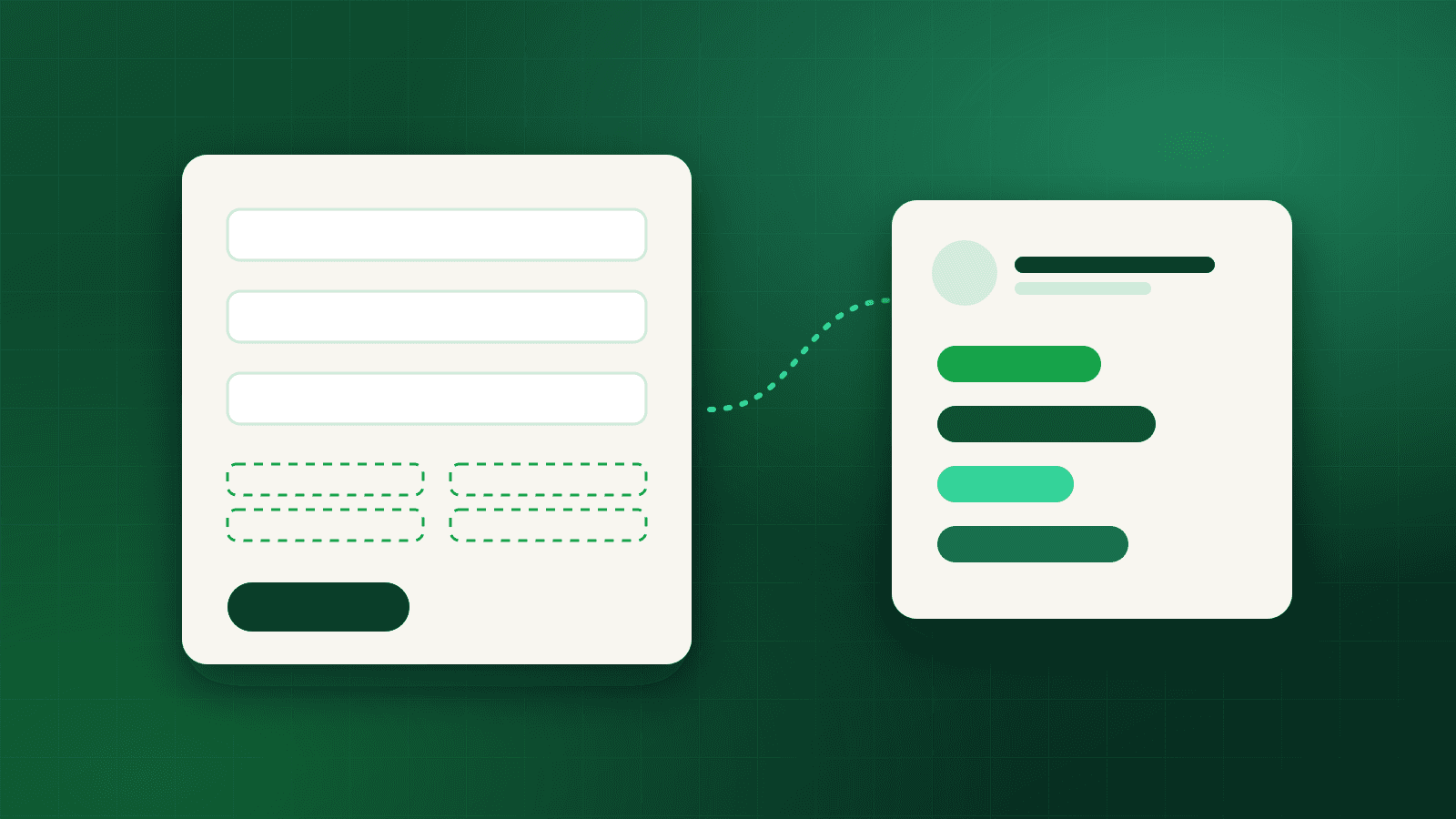
- Add hidden fields in the enquiry form for gclid, utm_source, utm_campaign, utm_term, landing page and device.
- Fill those fields with a small script when the page loads. Save the values for the session, so they stay even if the person opens another page before filling the form.
- Send everything in the lead email or Google Sheet, right next to the name and phone number.
Why the session part matters
Many people do not fill the form on the first page they land on. They read about the course, check the fees page, then enquire. If your script only reads the URL on the current page, the source is lost by the time they submit.
Saving the values in session storage on the first page fixes this. The landing page and keyword from the first click travel with the visitor until they enquire.
What the sales team sees
Now every lead shows something like "Google Ads, this keyword, mobile" next to the name. The team can see which keywords bring serious enquiries and which bring time pass calls.
The conversation changes. Instead of "ads are bad", it becomes "these three keywords bring people asking for free courses". That is something I can act on.
What I do with the data
Once a few weeks of leads come in, I look for patterns:
- Keywords that bring mostly unqualified calls go into the negative list.
- Keywords that bring serious enquiries get more budget and their own ad groups.
- Devices or landing pages with poor lead quality get a closer look.
Then I add negatives or move budget using proof, not opinion.
Test it before you trust it
Before going live, submit a test lead yourself from an ad style URL with the UTM parameters added. Check that every field arrives in the email or sheet. Then test again after opening a second page. It takes ten minutes and saves weeks of missing data.
Do you know the keyword behind every lead you get, or only the count?

Written by Shijil S
Independent Full Funnel Digital Marketer in Kochi, Kerala. 7+ years in SEO, Google Ads and Meta Ads across 20+ accounts, working with brands across India, UAE, US, UK and the rest of the world.
More about meFollow on LinkedIn